
systemd for self-hosters: The Linux service manager you do not need to fear
Services, boot, restarts, units, and the part of Linux that quietly keeps your system alive

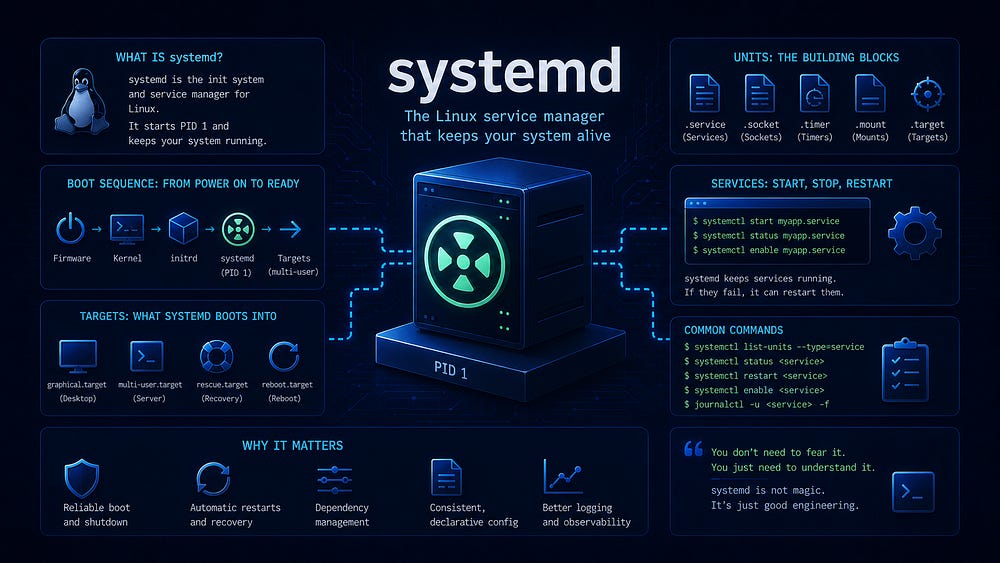
Linux starts to feel much less mysterious once you see services as managed processes, not just programs that happen to be running.
You install a reverse proxy. You set up a media server. You deploy a small web application. Each one needs to start when the machine boots, restart when it fails, and stop cleanly when you ask it to. On most Linux distributions shipped in the last decade, that responsibility belongs to systemd.
systemd still attracts strong opinions. Some are informed. Many are inherited from old arguments that matter less to a self-hoster running a current server. Debian, Ubuntu, Fedora, Arch, openSUSE, and most other mainstream distributions already use systemd as PID 1. It is the service layer your system is built around. Understanding it is operational literacy.
This article covers what systemd does, what a unit file is, how to manage services, how timers and logs fit into daily operations, and when a native systemd service is simpler than a container. The aim is practical: move from copying commands to understanding enough of the model to use systemd deliberately.
What systemd actually is
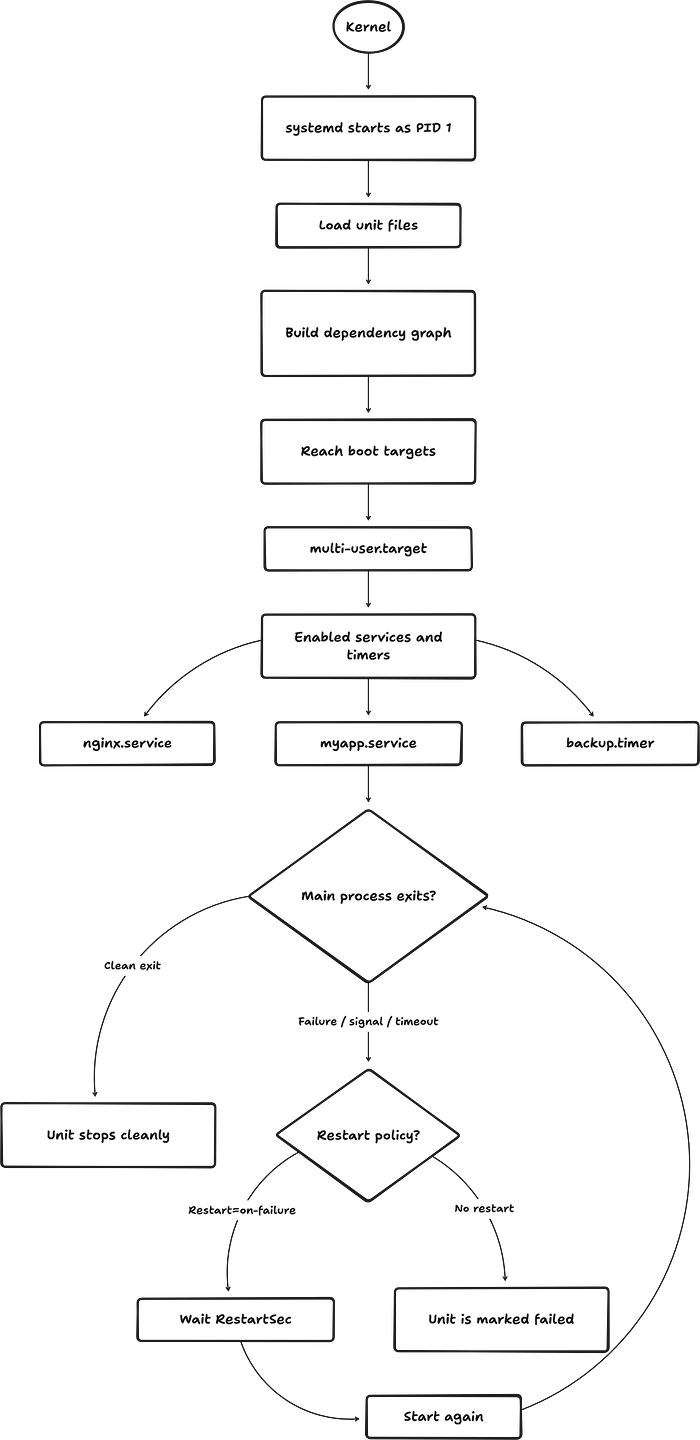
systemd is the system and service manager on most modern Linux distributions. It runs as PID 1, the first userspace process started by the kernel, and it becomes responsible for starting, supervising, and stopping the rest of the system.
Its full scope is broad. systemd includes service management, logging, device handling, login session management, DNS-related components, time synchronization, and more. A self-hoster does not need all of that on day one. The part that matters most often is the service manager: the layer that starts your programs, keeps them running, records their state, and gives you one consistent interface for controlling them.
Older Linux systems commonly used SysVinit or Upstart. Services were managed through shell scripts under /etc/init.d/, and boot ordering depended on conventions, numbered links, and distribution-specific glue. That worked for a long time, but it made service behavior harder to inspect and harder to standardize. systemd moved service management toward a declarative model: describe what a service is, what it needs, how it should run, and how it should behave when it exits.
The practical result is a uniform tool: systemctl. Whether the managed process is nginx, PostgreSQL, a VPN client, a media server, or a small binary you wrote yourself, the basic operations are the same.
What a unit is
systemd organizes managed resources into units. A unit is something systemd knows how to activate, deactivate, and monitor. There are many unit types, but self-hosters usually meet these first:
Service units (.service) represent a process or a group of related processes. When you run systemctl start nginx, you are activating nginx.service.
Timer units (.timer) activate another unit on a schedule. They cover much of the same ground as cron, but with better integration into service status, logs, dependency handling, and missed-run behavior.
Socket units (.socket) listen on a network port or Unix socket and start a service when traffic arrives. They are useful for on-demand activation, though most self-hosters will not need to write them early on.
Mount units (.mount) and automount units (.automount) manage filesystem mount points. systemd can generate these from /etc/fstab, and you can also define them directly when you need more control.
Target units (.target) group other units and represent system states. On a typical server, multi-user.target means the system has reached a normal multi-user, non-graphical operating state. Targets are the modern replacement for the old runlevel model.
Units are defined by plain-text files. The important locations are:
Package-owned unit files should not be edited directly. Package updates can replace them. For a custom service, place the unit in /etc/systemd/system/. For changes to a packaged service, use a drop-in override with systemctl edit nginx.service, which creates an override under /etc/systemd/system/nginx.service.d/.
Anatomy of a service unit file
A service unit file is an INI-style text file. Here is a small, realistic service for an application installed under /opt/myapp:
[Unit]
Description=My small web application
After=network.target

[Service]
Type=simple
User=appuser
Group=appuser
WorkingDirectory=/opt/myapp
ExecStart=/opt/myapp/server --config /etc/myapp/config.toml
Restart=on-failure
RestartSec=5s
StandardOutput=journal
StandardError=journal

[Install]
WantedBy=multi-user.target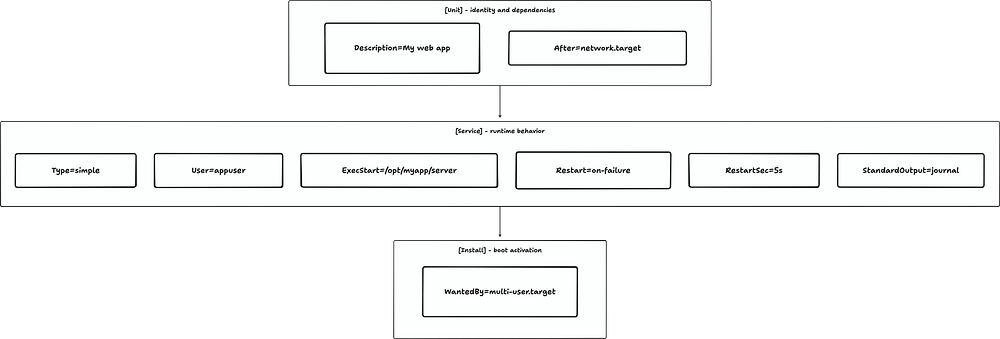
Each section has a specific job.
[Unit] describes the unit and its relationships. Description is the human-readable label shown in status output and logs. After=network.target controls ordering: it tells systemd to start this unit after the basic network stack has been brought up.
For many server applications, network.target is enough. A web application that binds to 127.0.0.1:8080 or 0.0.0.0:8080 usually does not need to wait for full external connectivity before starting. Use network-online.target only when the service must reach something over the network during startup, such as a remote database, a network filesystem, or a VPN-dependent upstream.
When you do need that stronger behavior, use both ordering and dependency:
After=network-online.target
Wants=network-online.target
After does not start another unit by itself. It only says, “if both units are being started, order this one after that one.” Wants asks systemd to start the other unit too, but treats failure as non-fatal. Requires is stricter: if the required unit fails, your unit is stopped or not started. That strict behavior is useful for some local dependencies, but it is often too brittle for network availability.
[Service] defines how the process runs. Type=simple means systemd considers the service started as soon as the ExecStart process is running. That is the right choice for most modern daemons and application servers that stay in the foreground. User and Group run the process as a dedicated account. WorkingDirectory sets the current directory. ExecStart is the actual command.
Restart=on-failure restarts the process if it exits with a non-zero status, is killed by a signal, or times out. RestartSec=5s adds a short delay before restart, which keeps a broken service from spinning in a tight loop. StandardOutput=journal and StandardError=journal route stdout and stderr into the systemd journal. For service units, journaling is commonly the default, but being explicit makes the example easier to read.
[Install] controls what happens when you enable the unit. WantedBy=multi-user.target means systemctl enable myapp.service creates a symlink so the service starts when the system reaches the normal server boot target.
This skeleton covers most custom services. More advanced directives exist for directories, resource limits, sandboxing, credentials, watchdogs, and conditional execution, but the three-section structure is the foundation.
Start, stop, enable, restart: the commands in plain English
systemctl is the main command-line interface for systemd. For system services, run these commands as root or with sudo.
systemctl start myapp.service activates the unit now. If it is already running, this normally does nothing.
systemctl stop myapp.service deactivates the unit. systemd sends the service a termination signal, waits for it to exit, and sends SIGKILL if it does not stop within the configured timeout. The common default timeout is 90 seconds, but distributions and individual units can override it.
